
How to Download SoundCloud Songs on Safari iPhone Free
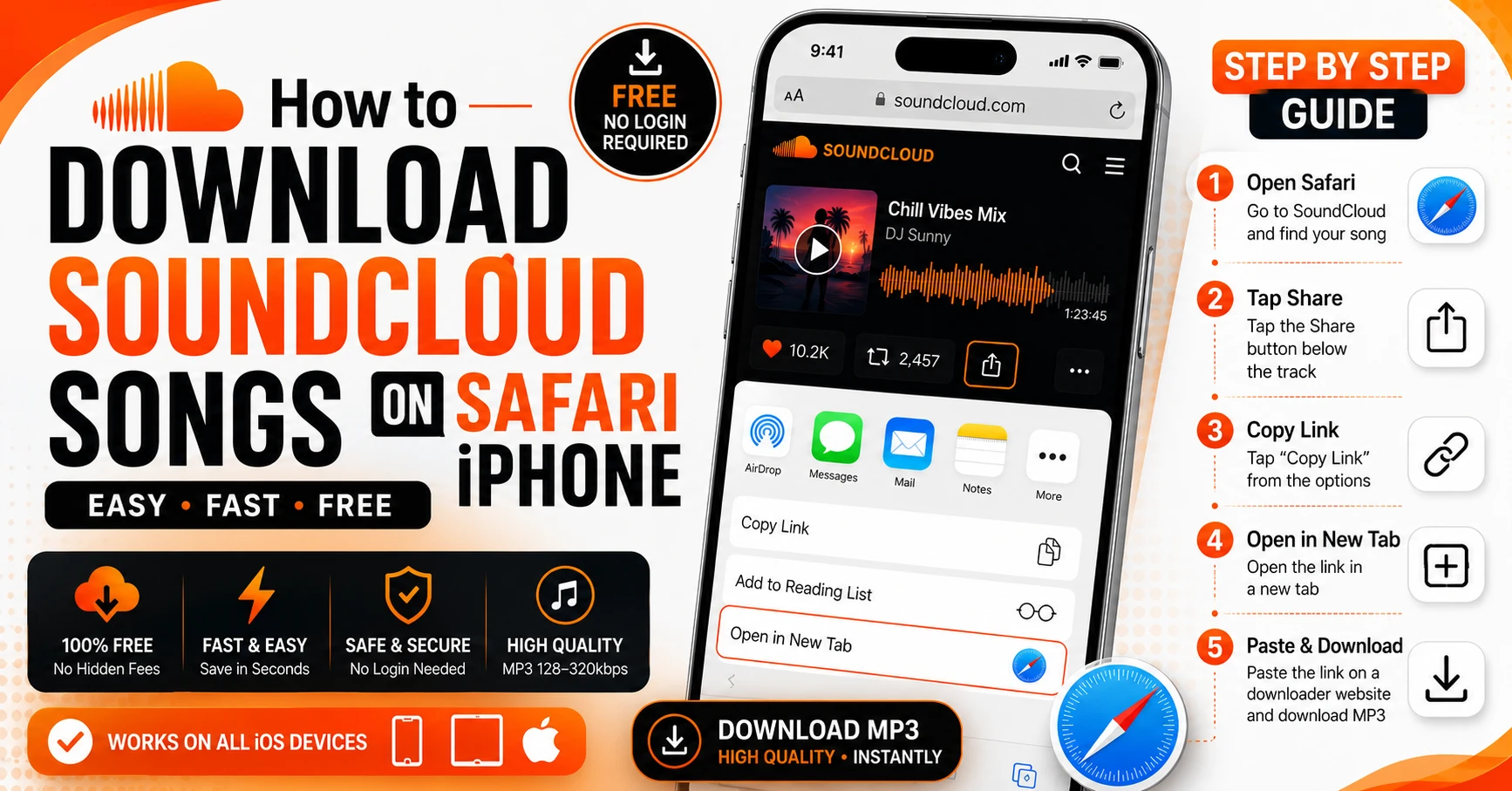
Downloading SoundCloud songs on Safari iPhone is the smartest and most reliable method for iPhone users who want to save music for offline listening without paying for SoundCloud Go+ or installing any extra apps. Safari is built into every iPhone and iPad, and it is the only iOS browser that saves downloaded files directly to your native Files app — making it the perfect tool for building an offline SoundCloud music library on your iPhone.
In this complete guide we cover exactly how to download SoundCloud songs on Safari iPhone in 2026 — step by step, completely free, with no app installation, no account required, and no technical knowledge needed.
Why Safari Is the Best Browser for Downloading SoundCloud Songs on iPhone
Many iPhone users try to download SoundCloud songs using Chrome or Firefox on their phone and run into problems. The files either do not save correctly, open in the browser instead of downloading, or disappear after the browser closes. This happens because of how iOS handles browser downloads.
On iPhone, only Safari triggers the native iOS download manager. When you download a file through Safari, iOS shows a native download prompt and saves the file directly to your Files app under the Downloads folder. The file becomes a permanent local file on your device that plays offline without any internet connection.
Chrome and Firefox on iPhone handle downloads differently — they often open files in the browser tab rather than saving them to your device storage. This makes Safari the essential browser for downloading SoundCloud songs on iPhone in any year, and 2026 is no different.
Additionally Safari on iPhone has improved significantly in recent iOS versions. iOS 15 and later made Safari downloads even more reliable, with better progress indicators and direct integration with the Files app. If you are running iOS 15 or later — which covers virtually every active iPhone in 2026 — Safari downloads work perfectly every time.
What You Need Before Starting
Before you download SoundCloud songs on Safari iPhone, make sure you have these basics ready.
An iPhone running iOS 14 or later — iOS 15 or later is recommended for the best Safari download experience. Safari browser — pre-installed on every iPhone, no download needed. The SoundCloud app or SoundCloud website to find your track. A working internet connection for the initial download. Enough free storage on your iPhone for the MP3 files.
That is everything. No extra apps to install, no accounts to create, nothing else required.
Step by Step Guide — How to Download SoundCloud Songs on Safari iPhone
Step 1 — Find Your Track on SoundCloud
Open the SoundCloud app on your iPhone or visit soundcloud.com in any browser. Search for the track, mix, playlist, or podcast episode you want to download. Navigate to the specific track page so you can copy its direct link.
Before attempting to download, confirm the track is publicly accessible. Open it in a private Safari window — tap the tabs icon in Safari, tap Private, and search the track URL. If it plays without login in private mode, it is public and downloadable. Private tracks and SoundCloud Go+ exclusive content cannot be downloaded by any external tool.
Step 2 — Copy the SoundCloud Track Link
There are two easy ways to copy a SoundCloud link on iPhone.
In the SoundCloud app, open the track you want, tap the three dot menu icon at the top right of the track page, and select Share. From the share sheet that appears, tap Copy Link. SoundCloud copies the track URL to your iPhone clipboard instantly.
Alternatively, if you are browsing SoundCloud in a browser on your iPhone, tap the address bar at the top of the browser to select the full URL and tap Copy.
Both full soundcloud.com links and short on.soundcloud.com mobile share links work perfectly. SC Downloader handles both formats automatically.
Step 3 — Open Safari on Your iPhone
This step is critical. You must use Safari specifically — not Chrome, not Firefox, not any other browser. Only Safari on iPhone triggers the native iOS download prompt that saves files to your Files app.
If Safari is not already open, find it on your iPhone home screen or in your app library. Safari comes pre-installed on every iPhone and cannot be deleted.
Step 4 — Visit SC Downloader in Safari
In Safari, type sc-downloader.com in the address bar and tap Go. You will land directly on the SC Downloader homepage with the input field prominently displayed at the top. No login prompt, no registration wall, no pop-ups — just the tool ready to use immediately.
Step 5 — Paste Your SoundCloud Link
Tap the input field on SC Downloader’s homepage. A paste option will appear above the keyboard — tap Paste to insert the SoundCloud link you copied earlier. You can also tap and hold the input field and select Paste from the context menu.
Once your link is in the field, tap the Download button. SC Downloader immediately begins processing — fetching the track metadata from SoundCloud, identifying the best available audio stream, and preparing your MP3 file for download. This typically takes between three and eight seconds.
Step 6 — Select Your Audio Quality
After the track resolves successfully you will see the quality options appear on screen. Choose between standard 128kbps for a smaller file size — ideal for casual listening and saving iPhone storage — or premium 320kbps quality for the highest available audio fidelity. For music you love and plan to listen to on quality headphones, always choose 320kbps. For background listening or tracks you will play on iPhone speakers, 128kbps is perfectly adequate.
Step 7 — Download the MP3 to Your iPhone Files App
Tap Download MP3 File. Safari will display a native iOS download notification at the top of the screen — this is the standard iOS download prompt that appears whenever Safari saves a file. Tap the download indicator to see progress, or simply wait for it to complete.
Once the download finishes, the MP3 file is saved directly to your iPhone Files app under On My iPhone then Downloads. The file is now permanently stored on your device and available for offline listening anytime — no internet connection, no SoundCloud app, no subscription required.
Where to Find Your Downloaded SoundCloud Songs on iPhone
After downloading SoundCloud songs on Safari iPhone, finding them is straightforward. Here is exactly where to look.
Open the Files app on your iPhone — the blue folder icon that comes pre-installed on all iPhones. Tap Browse at the bottom of the screen. Under Locations, tap On My iPhone. Open the Downloads folder. Your downloaded SoundCloud MP3 files are listed here with their track names and file sizes.
Alternatively, from within Safari you can access your recent downloads by tapping the download indicator icon that appears in the Safari toolbar when a download is in progress or recently completed. Tap the file name in the downloads list to open it directly.
How to Play Downloaded SoundCloud Songs on iPhone
Playing downloaded SoundCloud MP3 files on iPhone is simple, though the best experience depends on which app you use.
Files App — Quick Playback Tap any MP3 file in your Files app Downloads folder to play it immediately. The Files app has a built-in audio player that works for quick listening. However it does not support playlists, queue management, background playback controls in the lock screen, or equalizer settings — so it is best for quickly previewing a download rather than regular listening.
VLC for iPhone — Best Free Option VLC for iPhone is the top recommendation for playing downloaded SoundCloud songs on iPhone. It is completely free on the App Store, plays every audio format without issues, supports background playback with lock screen controls, and allows you to organize downloaded tracks into playlists. To use VLC, open the Files app, tap and hold your downloaded MP3, tap Share, and select Copy to VLC. The track appears in VLC’s library immediately.
Doppler — Best Paid Option Doppler is a premium music player app for iPhone specifically designed for local MP3 file playback. It reads files directly from your Files app, displays embedded artwork and metadata beautifully, and provides a genuine music app experience for your downloaded SoundCloud library. Worth the one-time purchase if you plan to build a large offline collection.
Apple Music — Requires Extra Step Apple Music on iPhone does not directly read MP3 files from the Files app without syncing through a Mac. If you want your downloaded SoundCloud songs in Apple Music on iPhone, the easiest path is to sync them via iTunes or Finder on a Mac. For most users VLC is the simpler option for iPhone playback.
How to Download SoundCloud Playlists on Safari iPhone
Downloading an entire SoundCloud playlist on Safari iPhone follows the same process as individual tracks. SC Downloader’s playlist downloader is fully compatible with Safari on iPhone.
Open Safari on your iPhone, visit sc-downloader.com/playlist-downloader, and paste the URL of any public SoundCloud playlist, album, or set. SC Downloader resolves the complete tracklist and displays every track with title, artist, duration, and artwork.
Tap Download MP3 on each track you want to save. Safari will download each file sequentially to your Files app. For large playlists, you can start the next download while the previous one is still saving — Safari handles multiple downloads simultaneously on iOS 13 and later.
For a complete playlist downloading guide, read our detailed article on how to download SoundCloud playlists to MP3 free.
How to Download SoundCloud Songs on Safari iPhone Without Login
One of the biggest advantages of using SC Downloader to download SoundCloud songs on Safari iPhone is that no login or registration is ever required. You never need to create a SoundCloud account and you never need to create an SC Downloader account.
Visit sc-downloader.com in Safari, paste your link, and download. The entire process from opening Safari to having an MP3 file saved in your Files app takes under sixty seconds — with zero account creation involved at any point.
For a complete guide to using SoundCloud converters without any login, read our article on SoundCloud to MP3 converter without login.
Managing Downloaded SoundCloud Files on iPhone
Building a growing offline SoundCloud library on iPhone requires some basic file management. Here are the most practical tips for keeping your downloaded files organized.
Create Subfolders in the Files App Open the Files app, navigate to On My iPhone, and tap the three dot menu to create a new folder inside Downloads. Name folders by artist, genre, or mood — House Music, Hip Hop, DJ Sets, Favourites. Then move downloaded SoundCloud files from the main Downloads folder into these organized subfolders. Tap and hold a file, select Move, and choose your destination folder.
Rename Files for Clarity If any downloaded file has an unclear name, tap and hold it in the Files app and select Rename. Give it a descriptive name — Artist Name Track Title.mp3 is a clear convention that makes large libraries easy to navigate.
Delete Files You No Longer Need iPhone storage is finite. Regularly review your downloaded SoundCloud library and delete tracks you no longer listen to. Tap and hold a file in Files and select Delete. Files deleted from On My iPhone go to the Files app Recently Deleted folder where they are permanently removed after thirty days.
Back Up to iCloud To protect your downloaded SoundCloud library, move important files to iCloud Drive instead of keeping them only in On My iPhone. Files stored in iCloud are backed up automatically and accessible on any device signed into your Apple ID — your Mac, iPad, or a new iPhone after a device upgrade.
Tips for Better Downloads on Safari iPhone
These practical tips ensure every SoundCloud download on Safari iPhone goes smoothly.
Download over wifi whenever possible. A 320kbps four minute track is approximately 9 to 10 megabytes. A two hour DJ mix at 320kbps is approximately 275 megabytes. Downloading over mobile data works but uses your data allowance quickly for long mixes and large playlists.
Keep Safari in the foreground during downloads. If you switch apps or lock your iPhone screen during a download, Safari may pause the download in the background — especially on older iPhone models. For short tracks this is rarely an issue but for long mixes keep Safari active until the download completes.
Check available storage before downloading large files. Go to Settings, General, iPhone Storage to see how much space is available. A low storage warning during a download can corrupt the file. Aim to have at least 500 megabytes free before downloading large mix files.
Clear Safari cache if downloads are not starting. Go to Settings, Safari, and tap Clear History and Website Data. This resolves most cases where the download button is not responding correctly on SC Downloader.
Common Problems Downloading SoundCloud on Safari iPhone and How to Fix Them
Problem 1 — Safari Is Not Showing the Download Prompt Make sure you tapped Download MP3 File and not just Download. If the prompt still does not appear, try clearing Safari cache in Settings then Safari then Clear History and Website Data. Restart Safari and try the download again.
Problem 2 — Track Cannot Be Resolved by SC Downloader Open the SoundCloud track in a private Safari window first. If it does not play there without login, it is a private track, geo-blocked content, or a Go+ exclusive that no tool can download. If it plays publicly but still fails in SC Downloader, paste the full soundcloud.com URL rather than a shortened on.soundcloud.com link.
Problem 3 — Downloaded File Does Not Appear in Files App Check the Files app under On My iPhone then Downloads. If the file is not there, check Recently Deleted in case it was automatically sorted. Also check iCloud Drive Downloads if your Files app is set to save to iCloud by default instead of On My iPhone.
Problem 4 — File Downloads but Does Not Play Open the file with VLC instead of the Files app built-in player. VLC handles all MP3 files correctly. If VLC also cannot play it, the download was likely interrupted — delete the file and try downloading again on a stable wifi connection.
Problem 5 — Short Link Not Working If you copied a short on.soundcloud.com link and SC Downloader cannot resolve it, open the short link in Safari first. Safari will redirect to the full soundcloud.com URL. Copy that full URL from the Safari address bar and paste it into SC Downloader instead.
Problem 6 — Download Is Very Slow on Safari iPhone Switch from mobile data to wifi if possible. Also check that iPhone Low Data Mode is not enabled — go to Settings, Cellular, Cellular Data Options and make sure Low Data Mode is off. Low Data Mode can throttle download speeds significantly.
Frequently Asked Questions
Final Thoughts
Downloading SoundCloud songs on Safari iPhone is the cleanest and most reliable method for iPhone users to build an offline music library without paying for subscriptions or installing extra apps. Safari’s native iOS download integration means every converted file goes directly to your Files app — permanently saved, fully offline, ready to play anytime.
SC Downloader makes the process take under sixty seconds from start to finish. Open Safari, visit sc-downloader.com, paste your SoundCloud link, choose 128kbps or 320kbps quality, tap Download MP3, and your track is in your Files app before your next song finishes playing.
Whether you want to save a single track for your morning commute, download a full playlist for a flight, or build a permanent library of your favorite SoundCloud artists — Safari on iPhone with SC Downloader is the best free solution available in 2026.
Start with one track right now. Open Safari, visit sc-downloader.com, and have your first download saved to your iPhone Files app in under a minute — no login, no app install, completely free.